Fast start
GRKit loads one to two seconds after power-on.
| Official firmware | Fast-boot firmware | |
|---|---|---|
| GRKit loads | About 8 to 10 seconds after power-on | One to two seconds after power-on |
| GRKit features | All | The same, with the same package |
| Install | Copy GRKit to the card | Update the firmware once, then copy GRKit to the card |
| Versions | All that GRKit supports | GR III 2.21, GR IIIx 1.71, GR IV 1.21, GR IV Monochrome 1.11 |
| Risk | The firmware does not change | If the update stops, the camera may not start. Ricoh may decline repairs. |
| Official updates | Install as usual | Replace the fast-boot firmware |
Make the firmware
- Download the latest firmware of your camera from Ricoh.
- Select the downloaded ZIP file, or the firmware file in it. The fast-boot firmware downloads.
The file is not uploaded.
GRKit is experimental and has no warranty. If you continue, you accept the terms of use.
Install the firmware
Installing it updates the camera firmware. If the update stops, the camera may not start.
- Charge the battery fully. Copy your photos from the card.
- Copy the fast-boot firmware to the card root, not into a folder. Remove other firmware files from the card root.
The camera finds the file only by its exact name:
- GR III
fwdc239b.bin - GR IIIx
fwdc243b.bin - GR IV / GR IV Monochrome
fwdc248b.bin
If the download folder already has a file of that name, the browser adds a number, such as fwdc239b (1).bin. Rename the file on the card back.
In Windows, turn on File name extensions in File Explorer before you rename. Otherwise the name can become fwdc239b.bin.bin.
- GR III
- Turn the camera off. Hold MENU and press the power button. Keep MENU held until the update screen shows.
- Select Execute, and press OK.
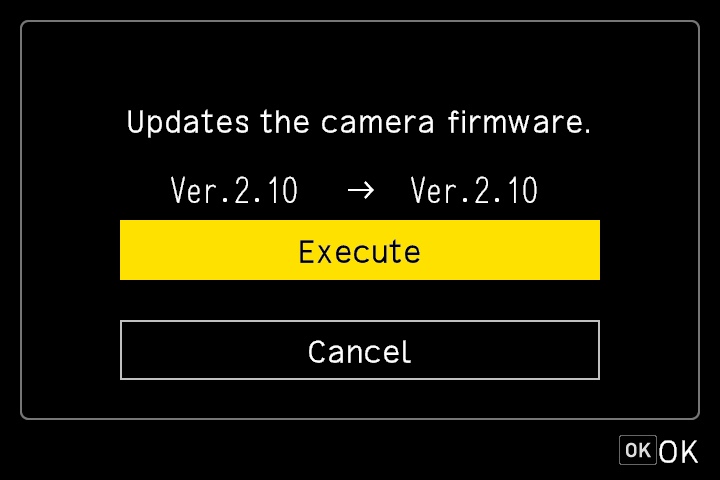
The update screen - The update starts. Do not turn the camera off or open the battery cover until the update is complete.
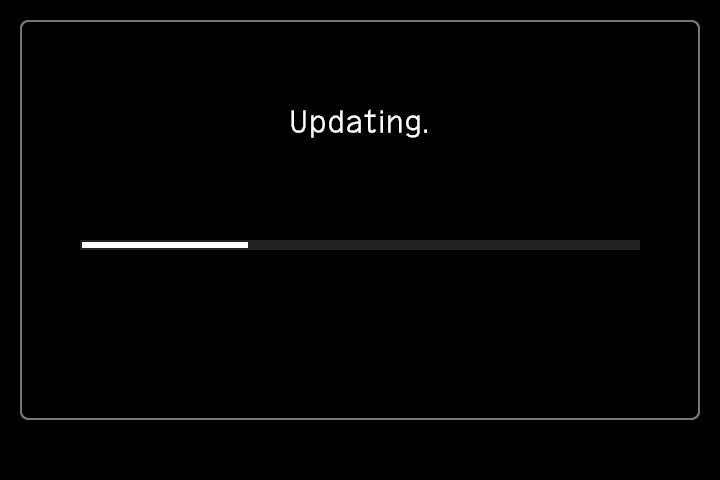
Updating - When the update is complete, turn the camera off.
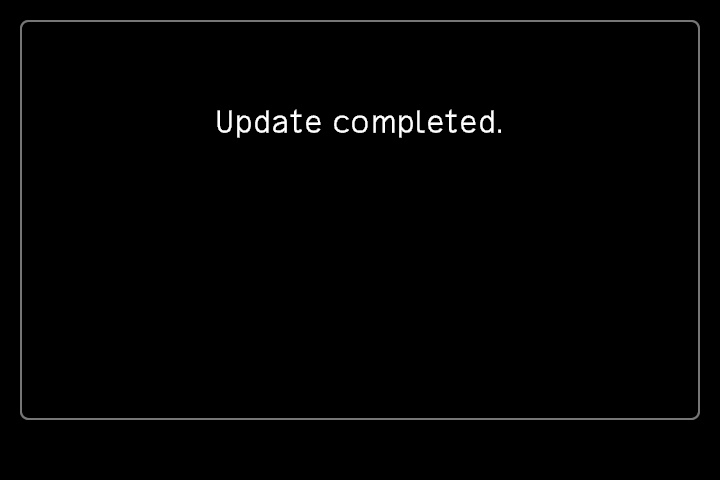
Update complete - Turn the camera on, and make sure that it takes and plays back photos. Then delete the firmware file from the card. Fast start needs GRKit 1.5.0 or later. If the card has an older GRKit or none, install the latest as usual.
After that, GRK shows in ADJ soon after power-on. The camera menu shows the same firmware version as before.
No update screen?
- If the camera starts as usual, it did not find the file. Check the file name, and make sure that the file is in the card root. Then try again.
- If the camera shows a problem with the update file, make the fast-boot firmware again from the latest official file.
Go back to the official firmware
Open the official ZIP of the same version, and update the camera with the firmware file in it, in the same way. A later official update also replaces the fast-boot firmware.